
Appearance
Settings
Menu: Commerce -> Settings
Deep link:/_Admin/commerce/settings?SiteId={siteGuid}
Site-level commerce global configuration (Commerce Store settings): units of measure, checkout payment methods, product/category/order field models, and variant/digital product display rules. After save, affects product types, product management, product categories, orders, etc.; scripts read via k.commerce.settings, see k.commerce settings.
vs "Currencies" menu
Storefront default currency code / symbol is usually maintained under Commerce -> Currencies; this page Basic section currently has weight unit and payment methods (if currency dropdown appears later, follow actual admin UI).
How to Open
- In the Edit menu, enable Commerce -> Settings (and the parent Commerce group).
- Open Commerce -> Settings in the left sidebar.
Page Structure
Single-page form, three white cards top to bottom + bottom fixed Save (KBottomBar, no Cancel). Keyboard shortcut save supported (same as other site edit pages).
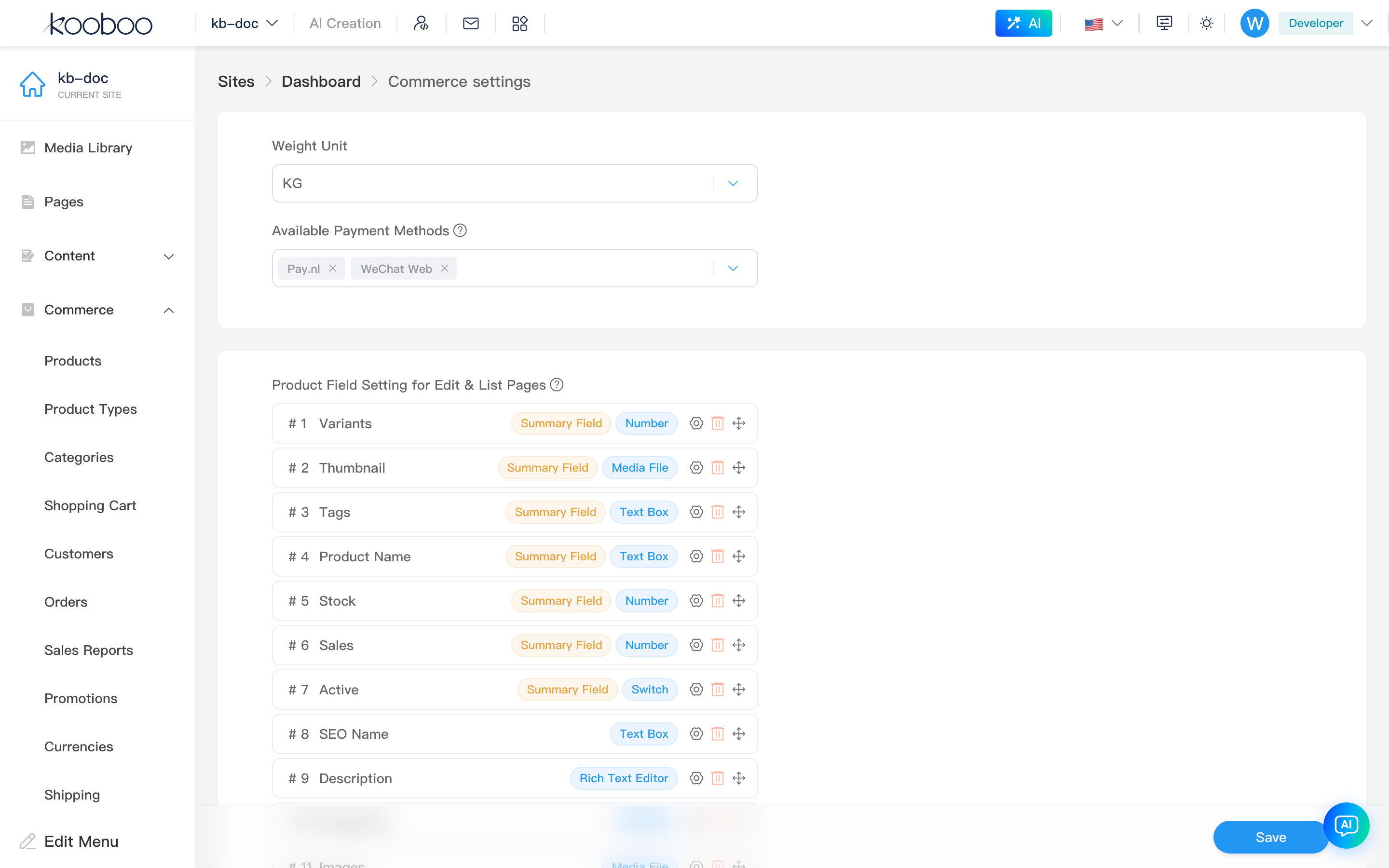
| Section | Content |
|---|---|
| Basic | Weight unit, enabled payment methods |
| Custom fields | Product fields, category fields, order extension fields |
| Display toggles | Hide attributes / hide variants / digital product delivery required (conditional) |
Basic
| Item | Description |
|---|---|
| Weight unit | kg or g; used for variant weight and shipping freight calculation |
| Enabled payment methods | Multi-select dropdown; options from installed payment modules (configure payment in service integrations /_Admin/system/config, see k.payment). Saved as payments array; checkout shows enabled only. Tooltip: configures k.commerce.settings.payments |
Custom Fields
Three SortableList lists, structure similar to Content -> Content Types field table, but data writes to commerce settings not content types.
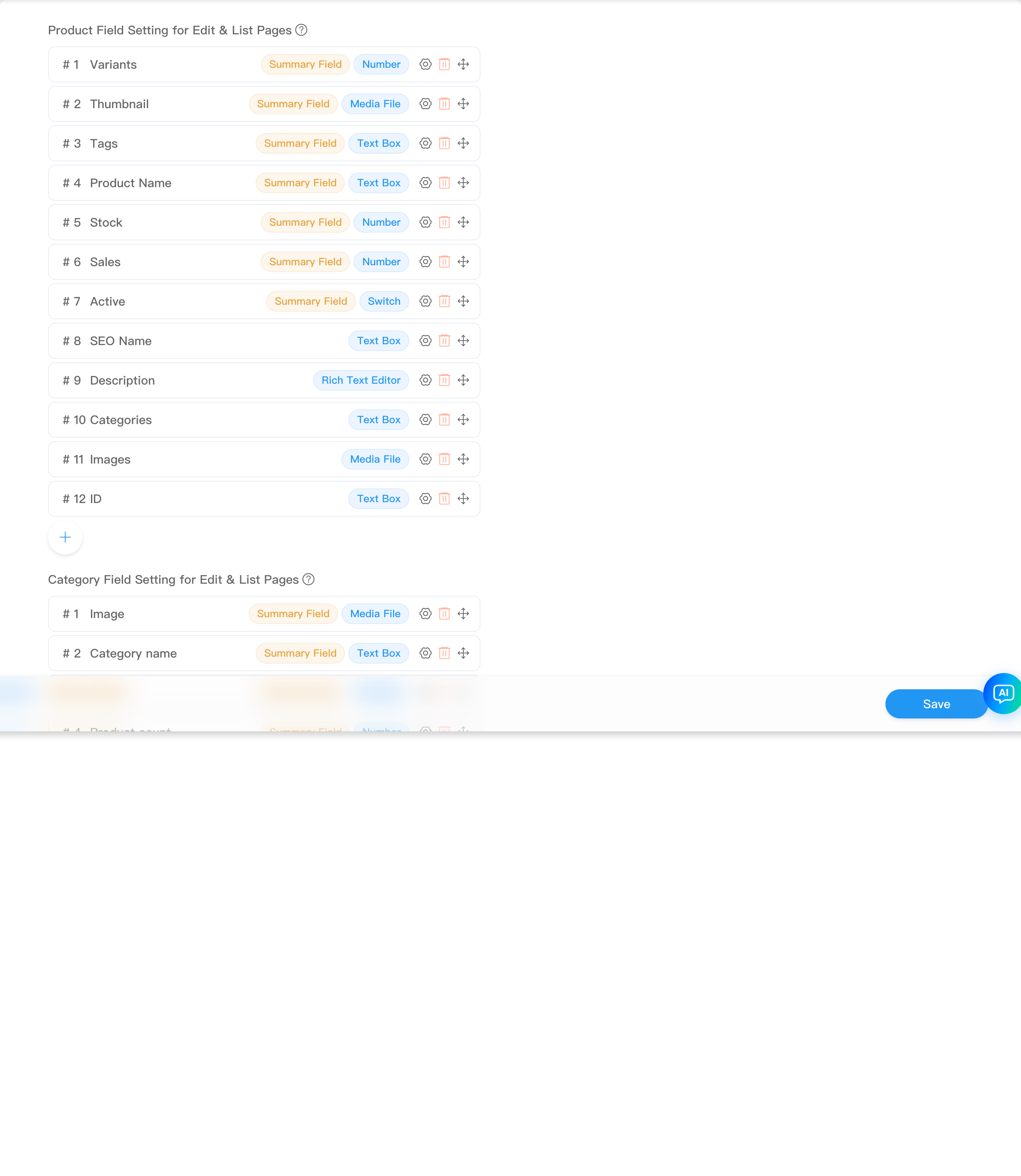
Product Fields
Controls product detail form and product management list summary columns.
| Action | Description |
|---|---|
| Add | Opens custom field dialog for new field |
| Edit | Change type, display name, validation, summary column, etc. |
| Delete | Non-system fields deletable; system fields (Title, Images, etc.) cannot be deleted |
| Sort | Drag to reorder fields |
Tooltip: Summary fields appear on the list page.
Category Fields
Controls product categories edit page and list dynamic columns; same rules as product fields.
Order Extension Fields
Adds extension data definitions for orders; field types geared to orders (e.g. filterable, exportable, column width, etc.); dialog differs slightly from product/category custom field dialog.
Custom Field Dialog (product / category)
Click Add or row Edit on product or category field list opens CustomFieldDialog.
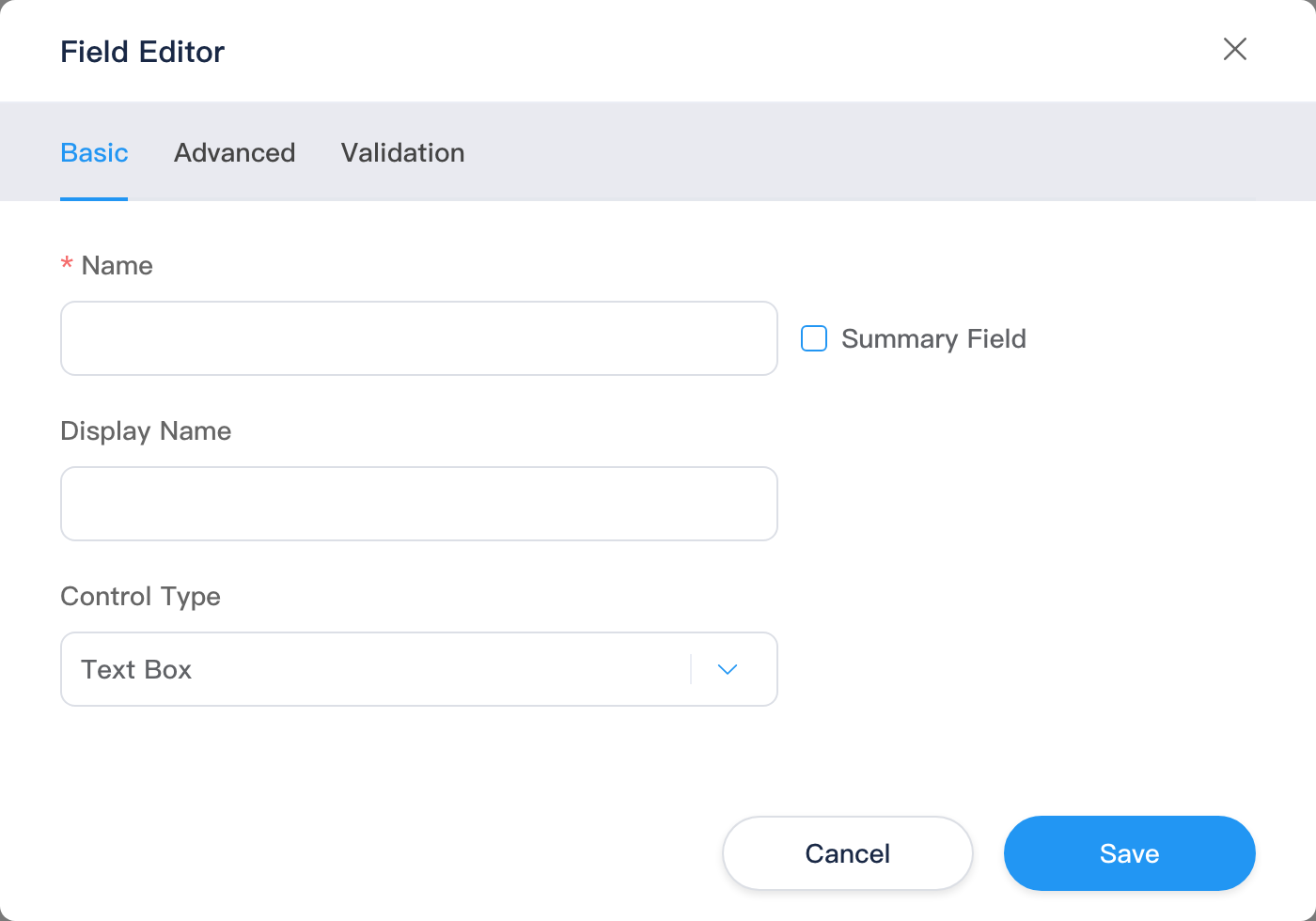
Common configuration (same control types as content field editor):
| Tab / Item | Description |
|---|---|
| Basic | Name, display name, control type (text, rich text, image, select, etc.), multivalue, summary field, multilingual, etc. |
| Advanced | Dynamic options, content folder relation, etc. (per control type) |
| Validation | Required, length rules, etc. |
| System fields Images / Image | Allow editing image meta template (product featured/category image metadata) |
After saving dialog, field enters corresponding list; must click page bottom Save to write to site.
Display Toggles

| Toggle | Description |
|---|---|
| Hide attributes | When on, product types create dialog and list Attributes column hidden; product detail basic info hides Attributes key-value pairs |
| Hide variants | When on, products treated as single variant; no variant options / variants on type and detail; list hides variant count |
| Digital product content cannot be empty | Shown only when at least one product type has Digital product checked; when on, saving digital product requires each variant to configure digital product delivery |
Related
- Commerce overview — recommended setup order
- Product types · Product management · Product categories
- Currencies · Shipping · Discounts
- k.commerce settings