
Appearance
Content Folders
Menu: Content -> Content
Deep link:/_Admin/content/contents?SiteId={siteGuid}
After you define a Content Type, create a content folder here and then manage entries inside it. The content folder name is also the key used in k.content.
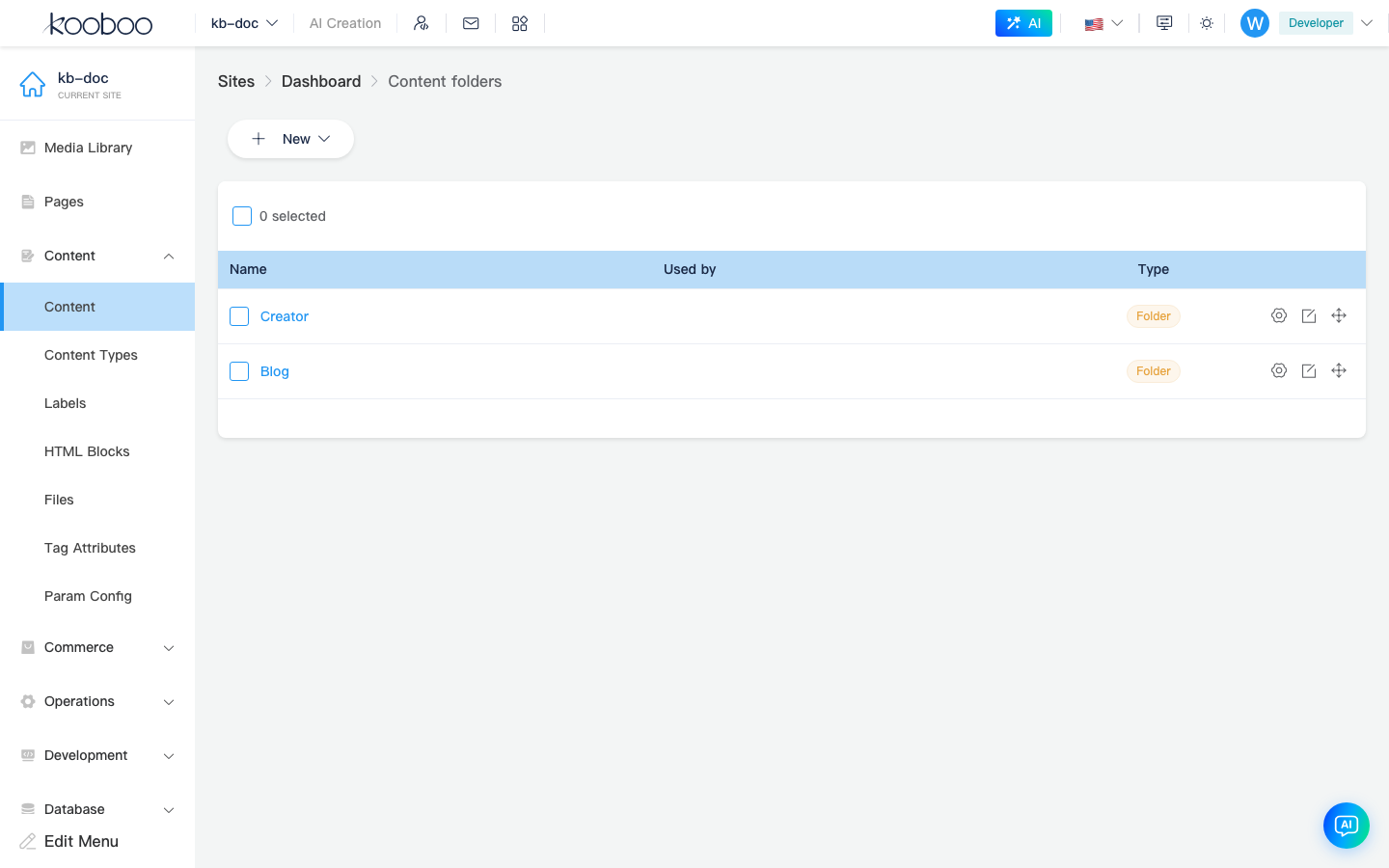
Folder vs Single Content
The New menu offers two shapes:
| Type | Meaning | Typical use |
|---|---|---|
| Folder | Holds multiple entries | Articles, news, products |
| Single Content | Holds exactly one record | Site notice, homepage configuration, global SEO copy |
Behavior differences
| Action | Folder | Single Content |
|---|---|---|
| Click the name | Open the entry list | Open the one editable entry directly |
| Settings dialog | Supports pagination, sorting, relations, and more | Some list-based options do not apply |
| Type label | Folder | Single Content |
Row actions
| Action | Description |
|---|---|
| Name | Open the entry list or the single-content editor |
| Settings | Open Content folder settings |
| Edit Data Type | Jump to the bound content type |
| Drag | Reorder folders in the list |
| Show All | Include hidden folders |
k.content behavior
Folder (IsContent = false)
k.content.{name} returns a folder object:
typescript
const list = k.content.Article.all()
const item = k.content.Article.get("my-article-id")
const one = k.content.Article.find({ Title: "Hello" })
Single Content (IsContent = true)
k.content.{name} returns the single content object directly:
typescript
const title = k.content.SiteNotice.title
k.content.SiteNotice.summary = "Updated summary"
WARNING
Make sure you know whether the folder is a normal folder or a single-content folder before you choose .all() / .get() or direct field access.
Related
| Doc | Description |
|---|---|
| Content folder settings | Metadata, relations, field order |
| Content entries | Entry list and editing |
| k.content | Full API |