
Appearance
Content Entries
Folder:
/_Admin/content/textContentsByFolder?SiteId=...&folder={contentFolderId}
Edit entry:/_Admin/content/content?SiteId=...&folder={contentFolderId}&id={entryId}(noidwhen creating)
Single content: Click the name on the list to open thecontentroute directly; only one entry to maintain
Create and edit concrete data rows under a content folder. Form fields are determined by the folder’s content type; if related data is configured, corresponding sections appear on the edit page (category / embedded selectors).
How to Enter
| Content folder type | Action |
|---|---|
| Folder | Click the content folder name on the list → entry list → New / row edit |
| Single content | Click name on the list → edit that one entry directly (no list page) |
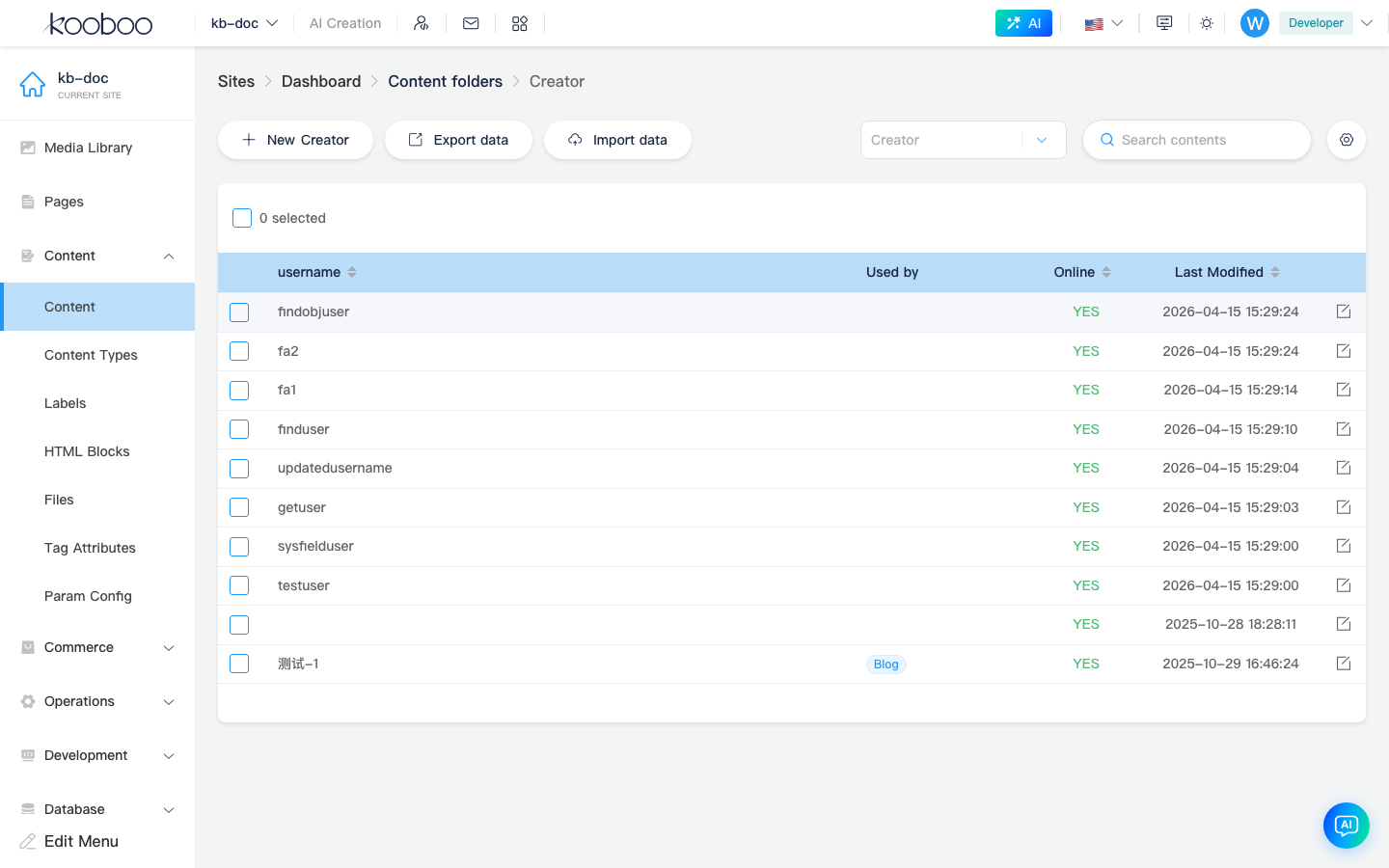
Entry List (Folder)
Common toolbar actions:
| Action | Description |
|---|---|
| New {display name} | Create a new content entry |
| Export data / Import data | CSV bulk export/import (per UI) |
| Search, filter | If the content type has filterable fields, filters may appear at the top |
| Batch delete, etc. | After selecting rows (when permissions allow) |
List columns typically include identifier, summary field, online status, modified time, etc. (varies by content type and Content folder settings · Fields order).
Edit Page
Route content; center area is a dynamic form:
- Content type fields: text, rich text, image, date, etc.
- Category data: per aliases in content folder settings, multi/single select entries from related folders (multi-select when Multiple is checked).
- Embedded data: pick entries from related folders to embed, with ordering; grouped embeds show in separate UI sections.
Bottom bar (common for folder type, not single-content folders):
| Button | Description |
|---|---|
| Save | Writes the current entry |
| Save and return | Saves then returns to the entry list |
| Save and new | Saves then continues creating the next entry (when creating) |
| Save and preview | Opens the front-end preview URL; multilingual sites can pick language |
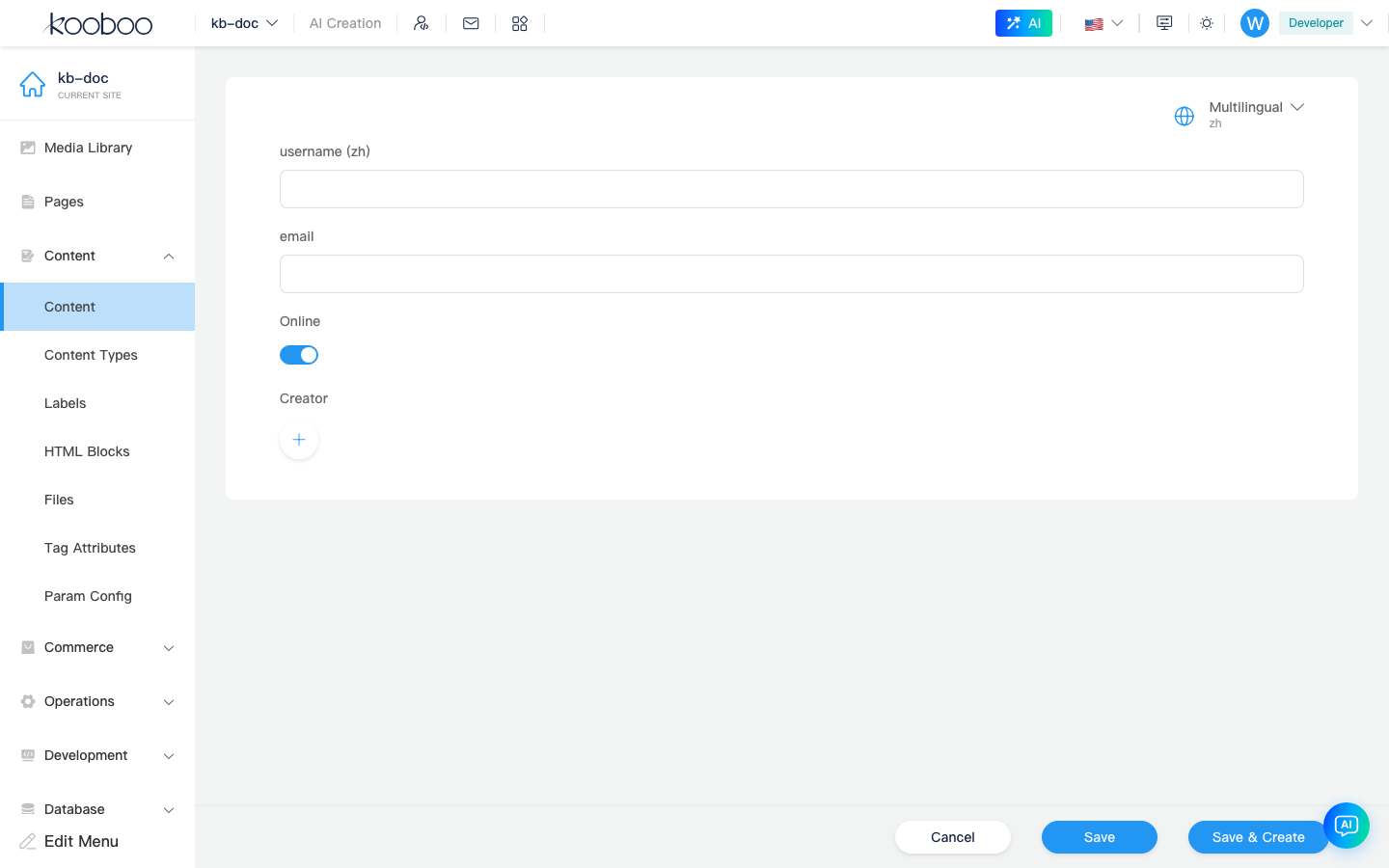
Single content folders usually only have Save / Cancel, without list-related buttons like Save and new.
Online Status and Multilingual
- Whether an entry is online, per-language offline state, etc. follow the form and site multilingual settings.
- After Enable multilingual on fields in content types, the edit page can switch languages for entry.
Using k.content After Save
| Content folder type | How to read |
|---|---|
| Folder | k.content.{folderName}.all(), get(id), find(...), etc. |
| Single content | k.content.{folderName}.fieldName direct access |
| Related data | On get results, access via aliases |
Related
| Doc | Description |
|---|---|
| Content folders | Folder vs single content |
| Content folder settings | Relations and field order |
| k.content | CRUD and query operators |
| k-data | Template list binding |