
Appearance
Page Interaction
Menu: Operations Center → Page Interaction
Deep link:/_Admin/system/page-interaction?SiteId={siteGuid}
Track page anchor (k-track) clicks: per-page trigger count, visit count, trigger rate, site-wide anchor ranking, and per-page anchor distribution. In Page Detail, preview the page, view anchor data, and edit anchors; the fullscreen anchor editor adds, edits, or removes anchors on the live page.
Collection switch
Header Enable maps to site field enablePageInteraction; when off, anchor clicks are no longer collected. Takes effect immediately after saving site settings.
How to Open
- In Edit Menu, enable Operations Center → Page Interaction.
- Open Operations Center → Page Interaction on the left.
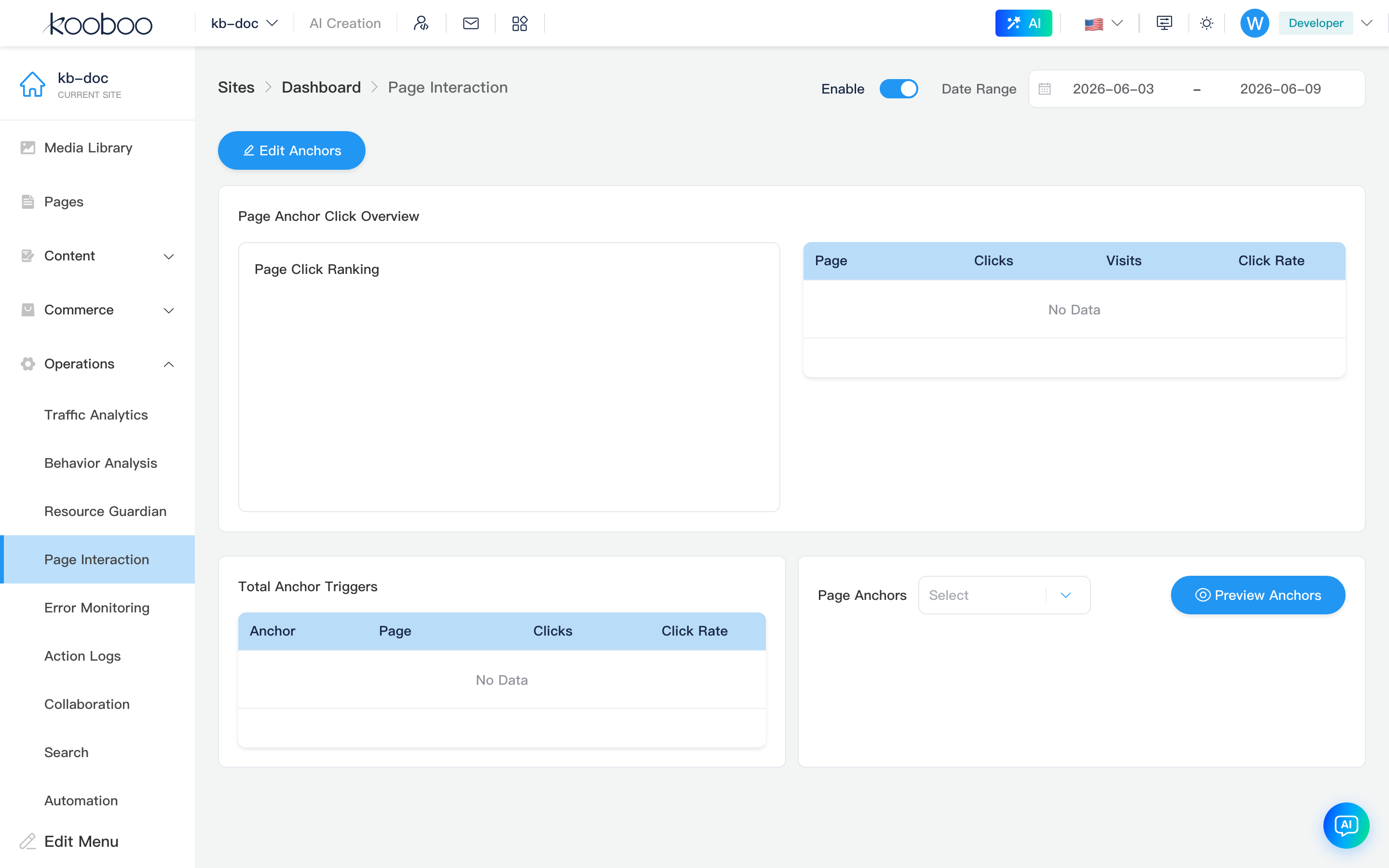
The main screen is the statistics area; Edit Anchors or a page link in the table opens Page Detail in a new tab. Sections below include screenshots.
Header
Path: /_Admin/system/page-interaction?SiteId=...
| Control | Description |
|---|---|
| Enable | enablePageInteraction; written back via saveSite |
| Date Range | Global userBehaviorDateRange (default last 7 days); changing it requests PageInteraction/GetStats |

Edit Anchors Entry
Edit Anchors opens Page Detail for the site home page path (new tab), so you can configure anchors starting from the homepage.

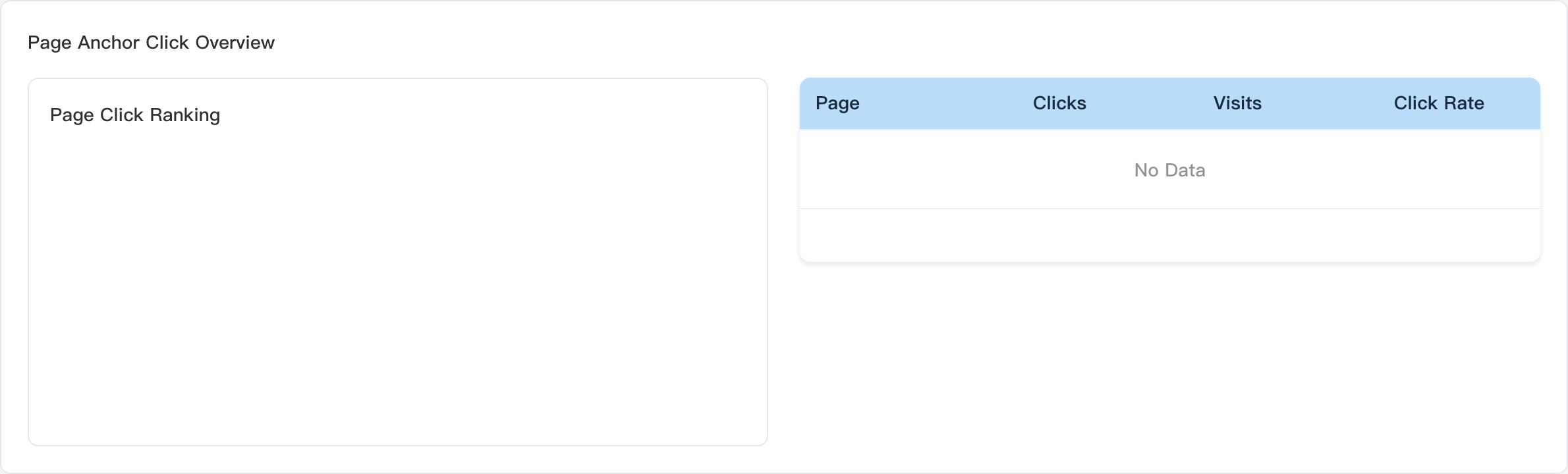
Page Anchor Click Overview
Section title: Page Anchor Click Overview. Left: Page Click Ranking bar chart (Ranking, by trigger count); right table columns:
| Column | Description |
|---|---|
| Page | Page URL; click opens that page's detail in a new tab |
| Trigger Count | count |
| Visit Count | userCount |
| Trigger Rate | rate (percentage) |
Total Anchor Clicks and Page Anchors
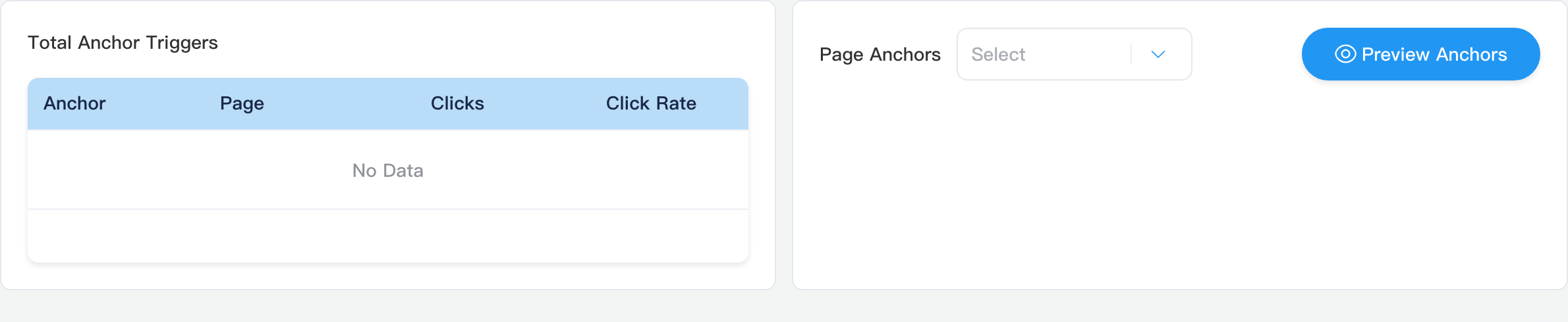
Two columns below:
| Block | Description |
|---|---|
| Total Anchor Clicks | Per-anchor name, Page, trigger count, trigger rate site-wide |
| Page Anchors | Page dropdown; left Preview Anchors opens that page's detail; right shows current page anchor click ranking |
Page Detail Subpage
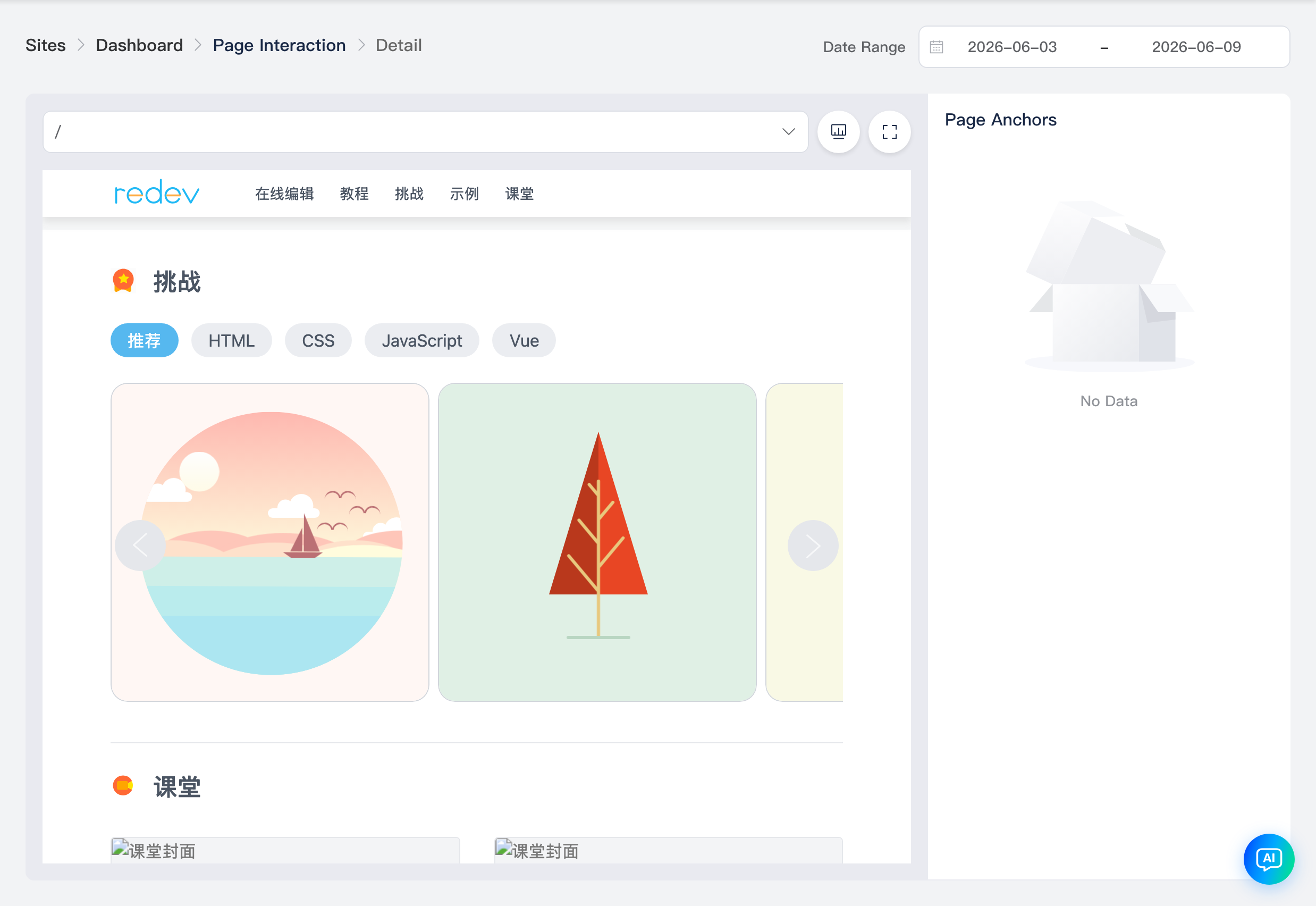
Path: /_Admin/system/page-interaction/detail?SiteId=...&path=...&startDate=...&endDate=...&type=...&id=...
(Opens in a new tab; Page Interaction stays highlighted in the menu.)
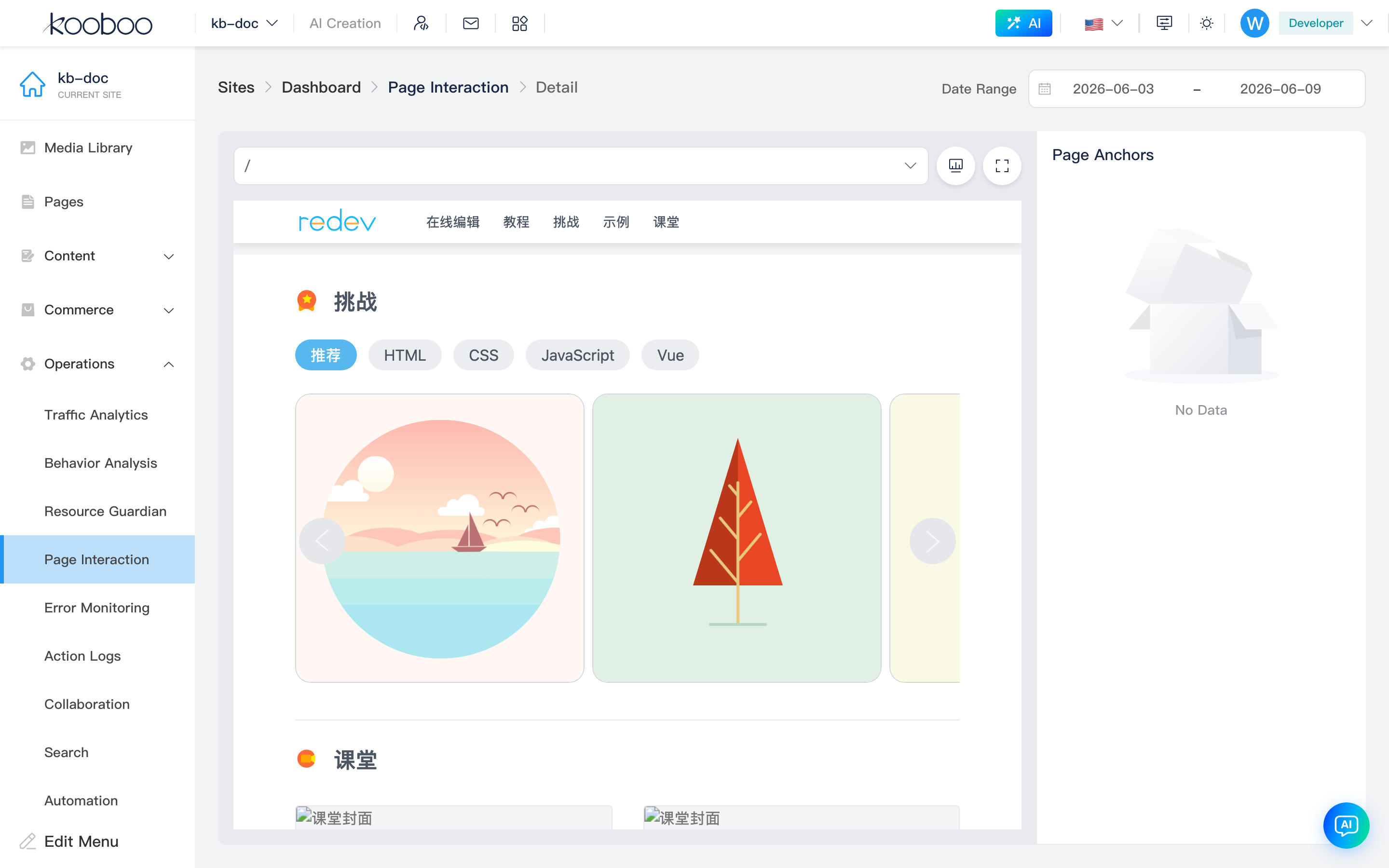
Breadcrumb: Page Interaction → Detail. Right Date Range is shared with the main screen; changing it refreshes anchor stats for the current page.
Page Preview Area
| Control | Description |
|---|---|
| Path | Dropdown to switch page paths in the site; confirm to refresh preview |
| Viewport Width | Switch phone/tablet/desktop preview widths |
| Fullscreen | Open fullscreen anchor editor (/_Admin/visual-anchor-editor) |
Center: page iframe preview with annotated anchor elements; click an element to view data on the right.
Right Anchor List
- Page Anchors list: anchor name and trigger count; Edit enters batch delete mode (check items then delete
k-trackbindings). - Click an anchor: bottom expands "{name} Anchor Data": total clicks, visit count, trigger rate.
Fullscreen Anchor Editor
Path: /_Admin/visual-anchor-editor?SiteId=...&path=...&startDate=...&endDate=...
(Usually opened from Page Detail Fullscreen.)
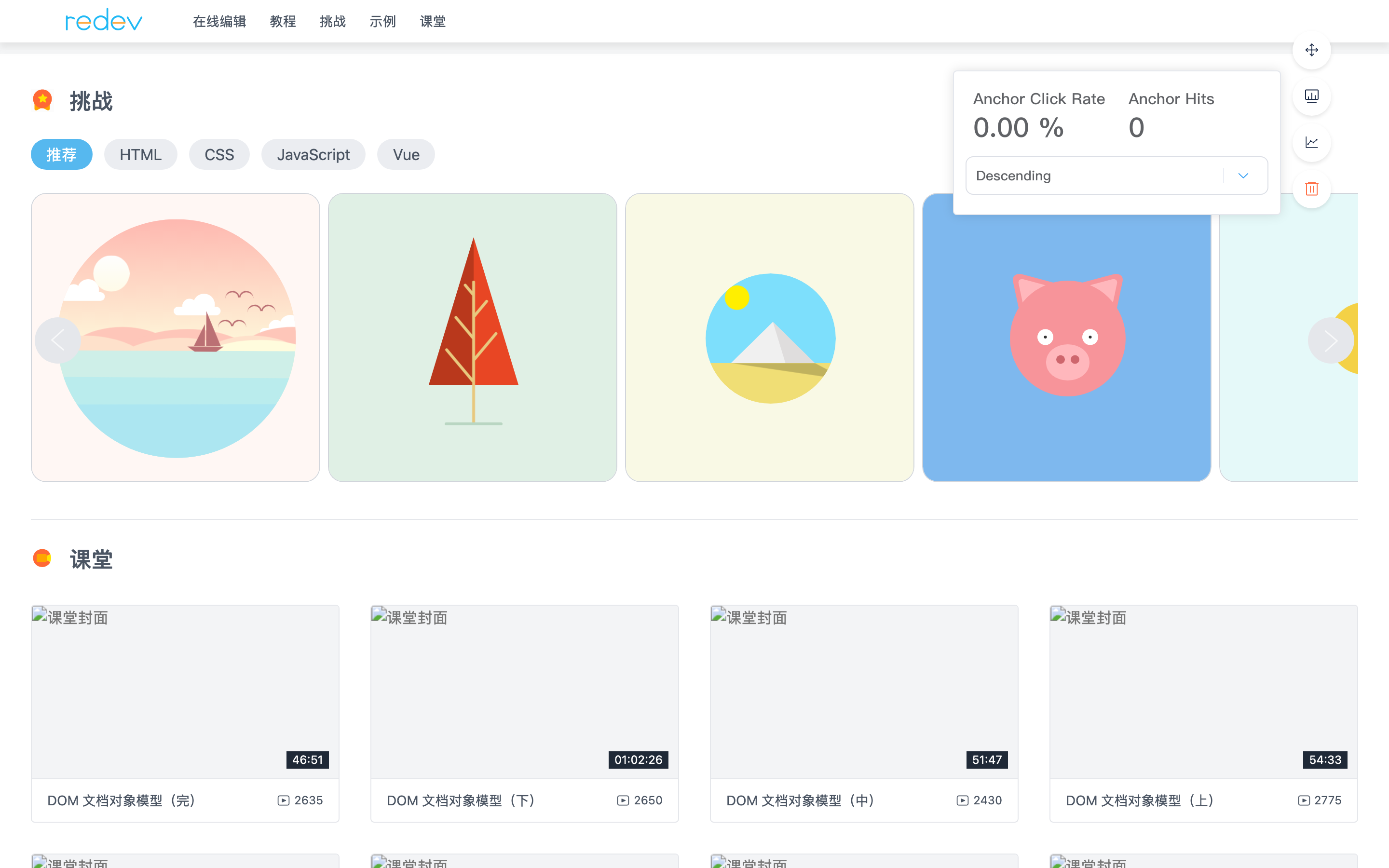
Embeds the site page full screen for visual anchor maintenance:
- Click page elements to open a context menu (edit anchor, remove anchor, etc., depending on Kooboo bindings).
- Floating global menu: switch preview width, anchor stats panel, batch delete anchors, etc.
- Anchors are stored on DOM attribute
k-track(anchor name) and submitted with Inline Design binding info via API.
When there is no data
If the main table is empty, confirm Enable is on, there were visits in the selected date range, and frontend pages have k-track anchors. Start from Edit Anchors on the homepage to add anchors, then watch statistics.
Related
- Operations Center overview
- Visitor Logs — site-wide visitor PV/UV
- Pages — page paths and content editing