
Appearance
Files
Menu: Content → Files (must be enabled in Edit Menu; route
advanced: true)
Deep link:/_Admin/content/files?SiteId={siteGuid}
Common query parameters:folder(current path, default/),keyword(search term),provider(storage provider, defaultdefault)
Files manages the site CMS file library: upload PDFs, ZIPs, documents, etc., organize by folder, and serve downloads or access via site URLs. This is not the same storage as top-bar Media library (images/media, k.media).
Not the same as k.file
| Content → Files (this page) | k.file | |
|---|---|---|
| Purpose | Admin UI management; routable CMS files | KScript read/write on site disk files |
| Admin UI | Yes (this page) | No dedicated visual UI |
| Script API | Currently no dedicated k.xxx for this library | k.file.read / write, etc. |
Do not treat this page as the admin entry for k.file; File field values on content entries also point to resources in this CMS file library, not k.file paths.
Where to put images?
UI guidance: images and icons for the site should go in the media library; this page suits attachments, downloadable documents, and other non-image-primary site files.
How to see this menu
If Files is missing under Content, open Edit Menu (editMenu, show/hide infrequent items), check Files, and save. See Menu overview · Edit Menu.
How to Open
- Enter the site admin (
SiteIdin the address bar). - After enabling Files in Edit Menu, open Content → Files.
- When entering subfolders or searching, the address bar updates
folder,keyword, andprovider.
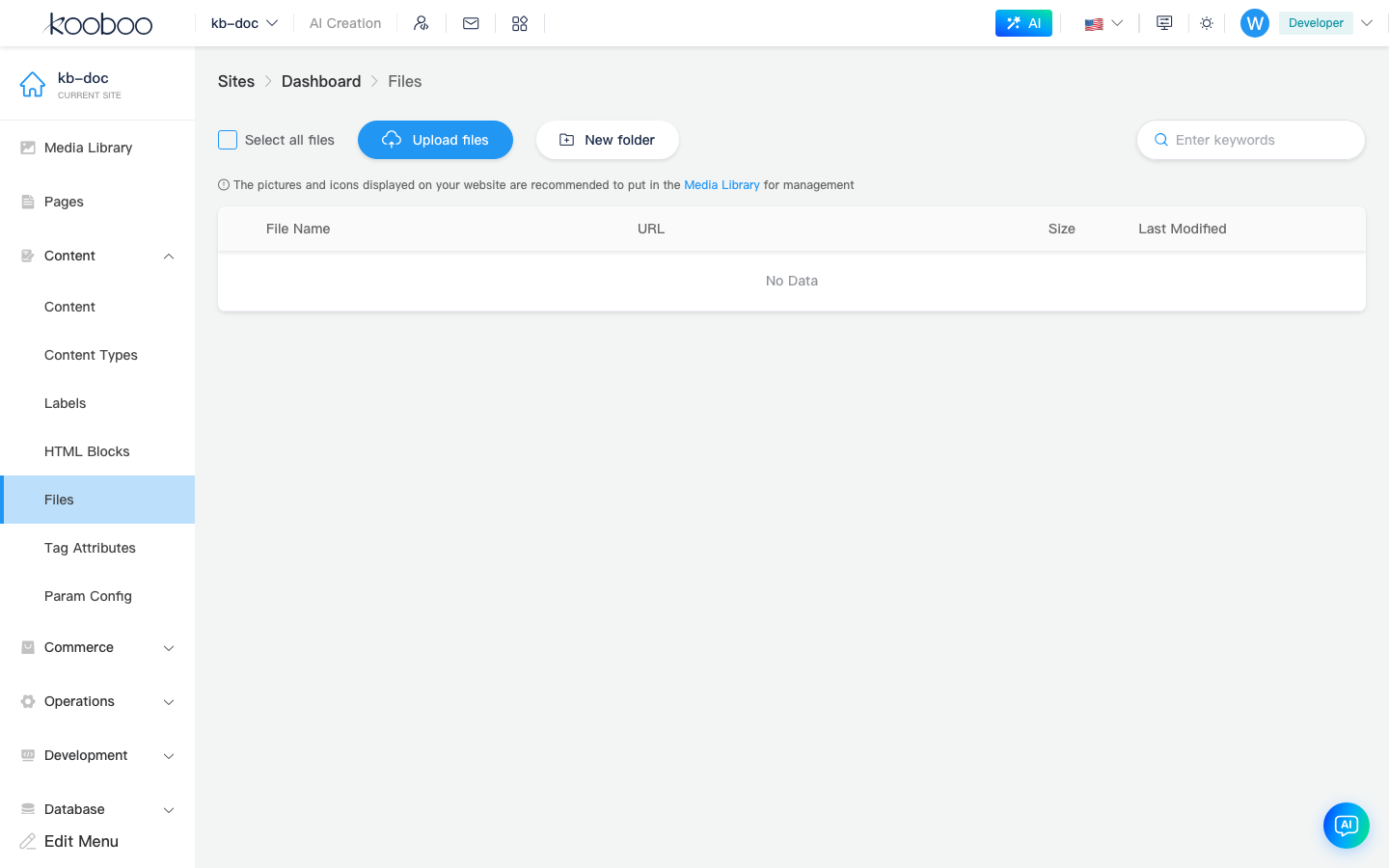
UI Overview
Breadcrumb
Path from Files (root) to the current folder; click to go up.
Toolbar
| Action | Description |
|---|---|
| Select all | Select files and folders on the current page |
| Upload | Upload one or more files to the current folder; unavailable while searching |
| New folder | Create a subfolder at the current path; unavailable while searching |
| Download | Download selected files/folders as a package |
| Delete | Batch delete selection (permission file · delete) |
| Search / provider | Keyword search on the right; if multiple providers are configured, switch tabs (provider) |
Single file size limit is about 150 MB (prompt if exceeded). If a file with the same name exists at the target path, upload prompts whether to overwrite.
List columns
| Column / action | Description |
|---|---|
| File name | File or folder name; click folder to enter |
| URL | Access path on the site (copy for page links or content fields) |
| References | Which site resources reference this file (if any) |
| Size | File size |
| Last modified | Update time |
| Row actions | Open containing folder, Copy URL, Preview (when applicable), Download |
Pagination at the bottom; some providers support infinite scroll for more (per API).
Typical Usage
Upload downloadable attachments
- Content → Files, open the target folder (e.g.
/downloads). - Upload local PDF/ZIP, etc.
- Copy URL from the list for HTML, rich text, or templates (site routing serves file content via CmsFile).
Select files in content fields
When a content type field uses File (optionally Enable multiple), Select file in the entry form opens the same browser dialog as this page (KFileDialog); selection writes the CMS file URL/key to the entry.
Comparison with media library
| Files (this page, CmsFile) | Media library | |
|---|---|---|
| Menu | Content → Files | Top-bar media library |
| Typical content | PDF, ZIP, attachments | Images, display media |
| Content fields | File control | Image / Advanced image |
| Script | No dedicated k.xxx yet | k.media |
Development Notes
- For script read/write on disk (logs, temp import files, etc.), use k.file; unrelated to Content → Files here.
- Public access to CMS library files is usually via URL copied from the admin list or front-end routing, not
k.filepaths.
Related
| Doc | Description |
|---|---|
| Media library | Images and media |
| Content types | File field control |
| k.file | Disk file KScript API (not this page) |
| Content overview | Content group menu |