
Appearance
AB Testing
Menu: Operations Center → AB Testing
Deep link:/_Admin/system/ab-testing?SiteId={siteGuid}
Configure A/B experiments for a site: pick an experiment object (page, view, product, etc.) as control A, configure one or more variants B/C… (full object replacement or field replacement), split visitors by traffic share and optional user conditions, and view reports with a Goal as the winning metric.
Permission
Menu permission: abTesting. Enable Operations Center → AB Testing (and parent Operations Center) in Edit Menu.
How to Open
- In Edit Menu, enable Operations Center → AB Testing.
- Open Operations Center → AB Testing on the left.
The main screen is the experiment list; Create AB Test opens a four-step wizard; row actions open Experiment Report. Sections below include screenshots.
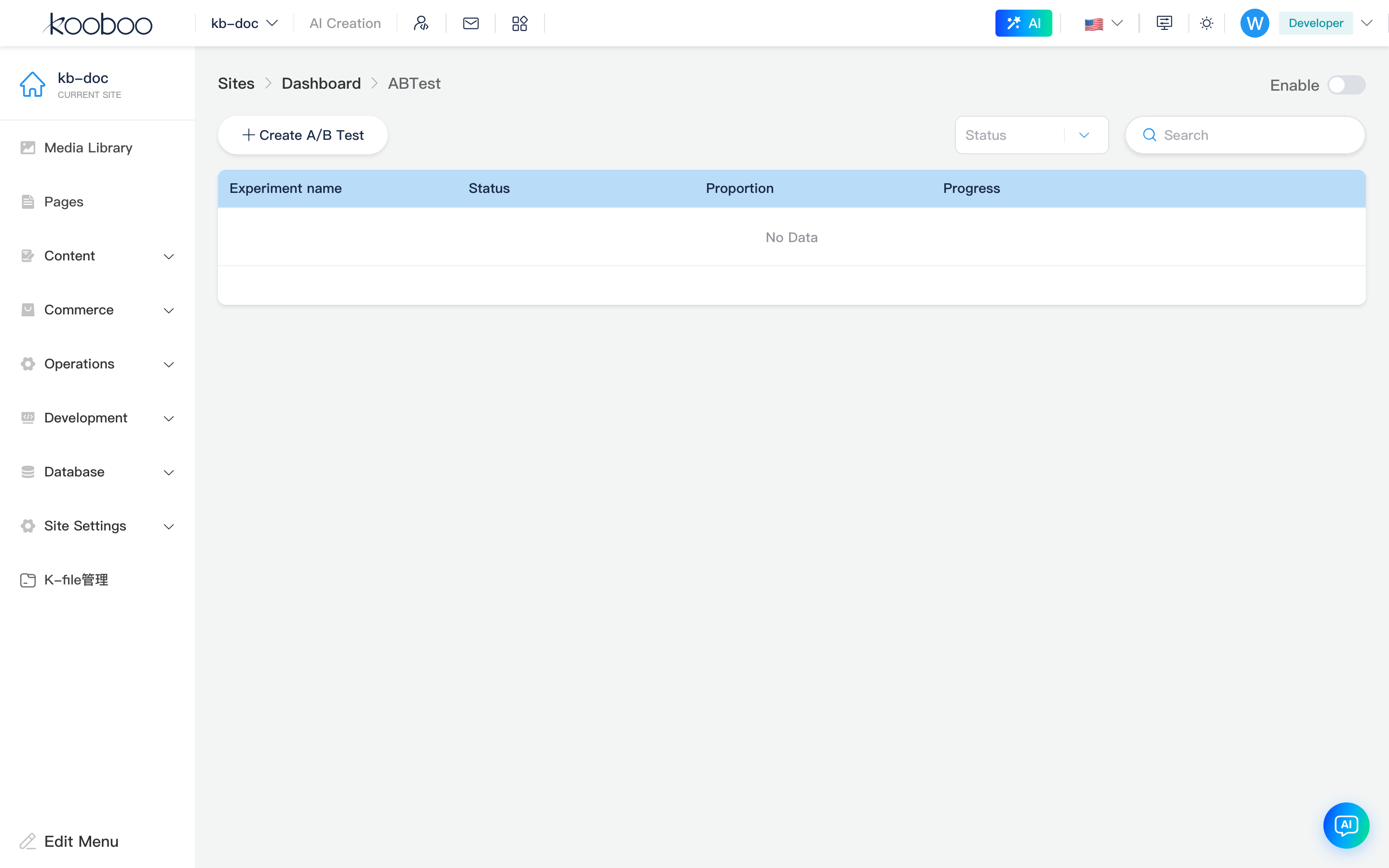
Header and Global Switch
Path: /_Admin/system/ab-testing?SiteId=...
| Control | Description |
|---|---|
| Enable | Site-wide AB testing master switch (updateAbTestStatus); when off, the frontend stops splitting traffic |
| (List area) | See next section |

List Toolbar
| Control | Description |
|---|---|
| Create AB Test | Go to /_Admin/system/ab-testing/create?SiteId=... |
| Status | Filter: Draft, Running, Paused, Completed |
| Search | Filter by experiment name or description keywords |

Experiment List
Table columns:
| Column | Description |
|---|---|
| Experiment Name | Name + description summary |
| Status | Draft Draft, Running Running, Paused Paused, Completed Completed / Archived |
| Traffic Share | Control A (100% − sum of variant weights) and each variant weight percentage |
| Progress | When running: days elapsed / total days and start/end time |
| Actions | View Report (published and past start time) or open detail; Delete experiment |
Click the experiment name area or View Report → Experiment Report.

Create / Edit Experiment (Four-Step Wizard)
Path: /_Admin/system/ab-testing/create?SiteId=...
Edit: same path with name={experimentName} query param, prefilled from the list.
Footer: Previous, Next / Save; Cancel returns to the list.
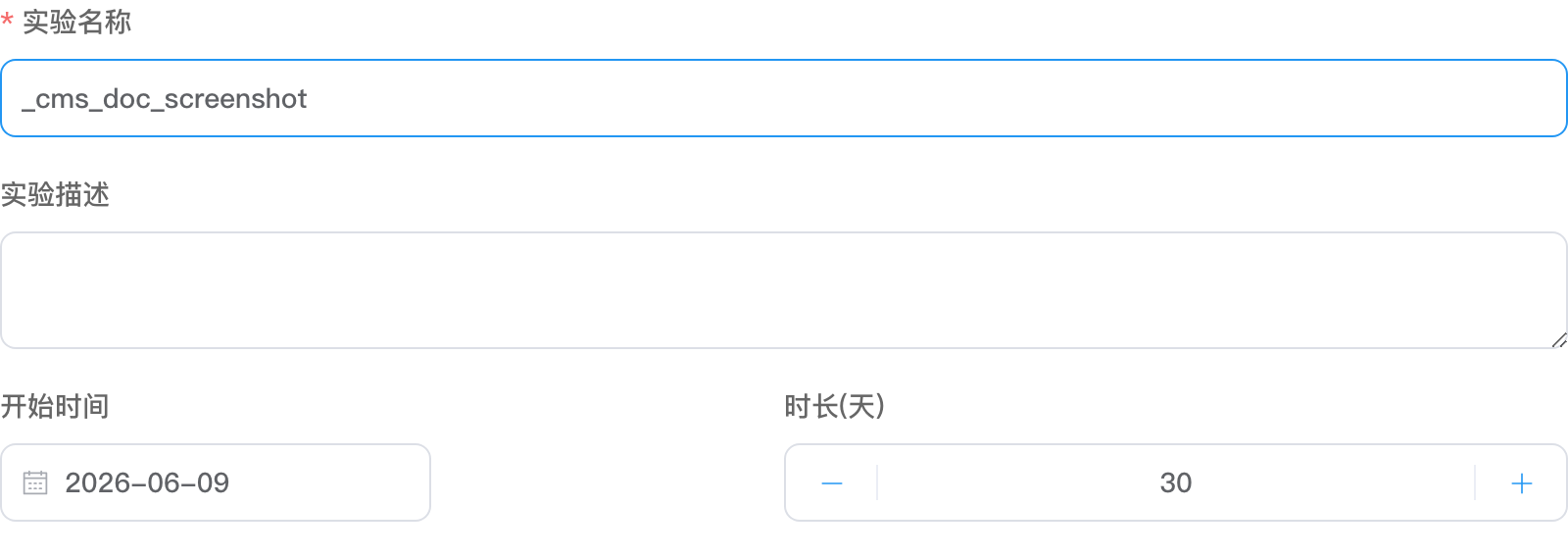
Step 1: Basic Info
| Field | Description |
|---|---|
| Experiment Name | Required, unique identifier |
| Experiment Description | Optional |
| Start Date / End Date | Experiment window; end must be after start |
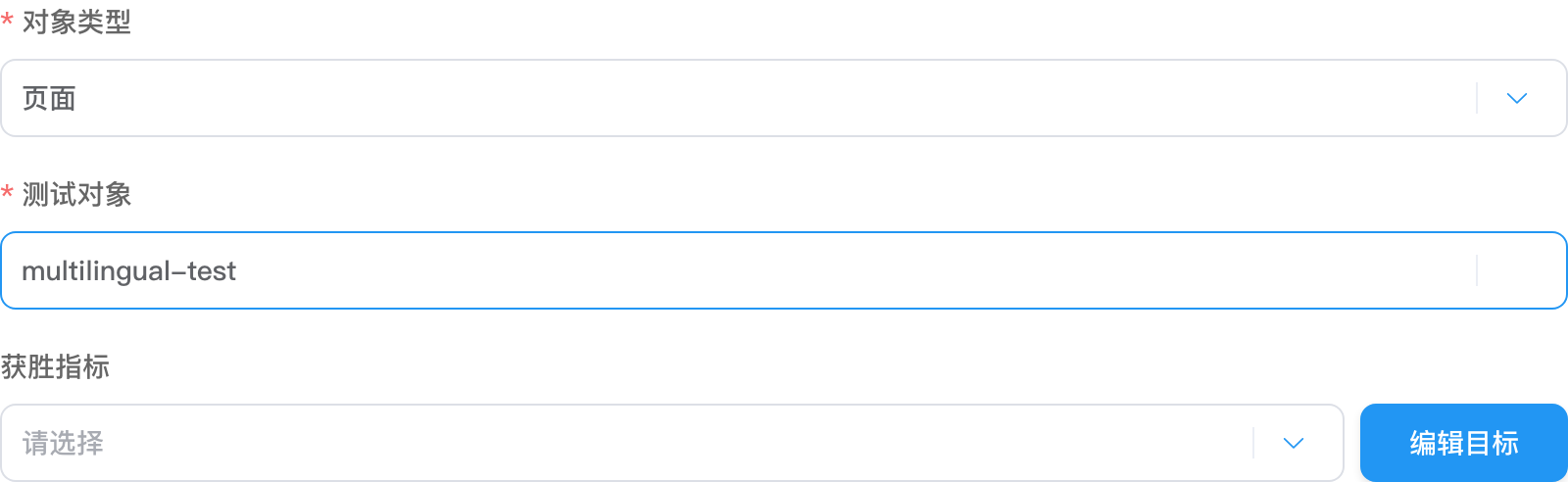
Step 2: Experiment Goal
| Field | Description |
|---|---|
| Object Type | e.g. Page, View, Product, TextContent (ObjectOptions) |
| Test Object | Specific object bound to control A (searchable) |
| Winning Metric | Select a Goal (from behavior-analysis traffic settings); Edit Goal opens Goal management dialog |
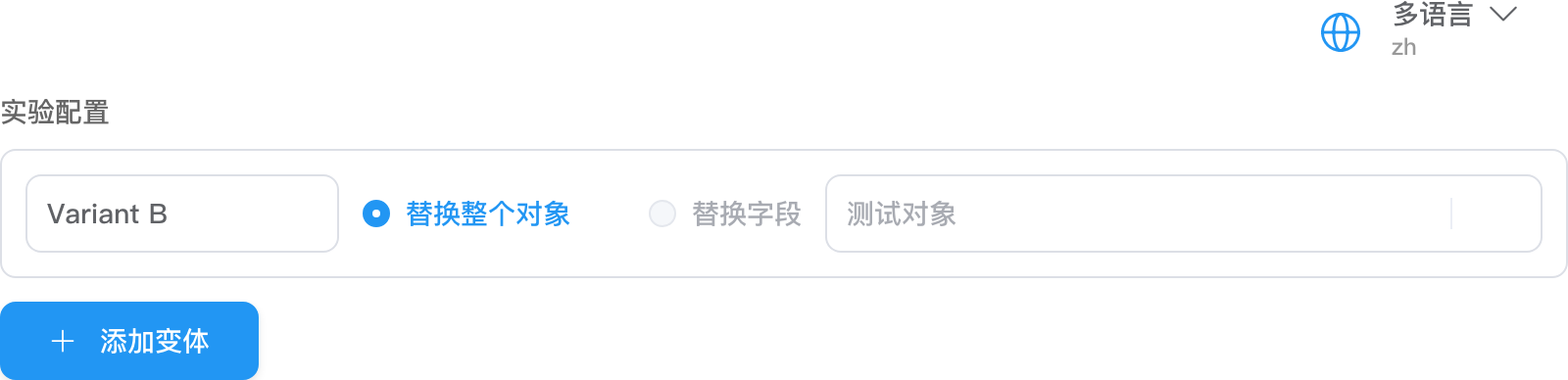
Step 3: Experiment Configuration
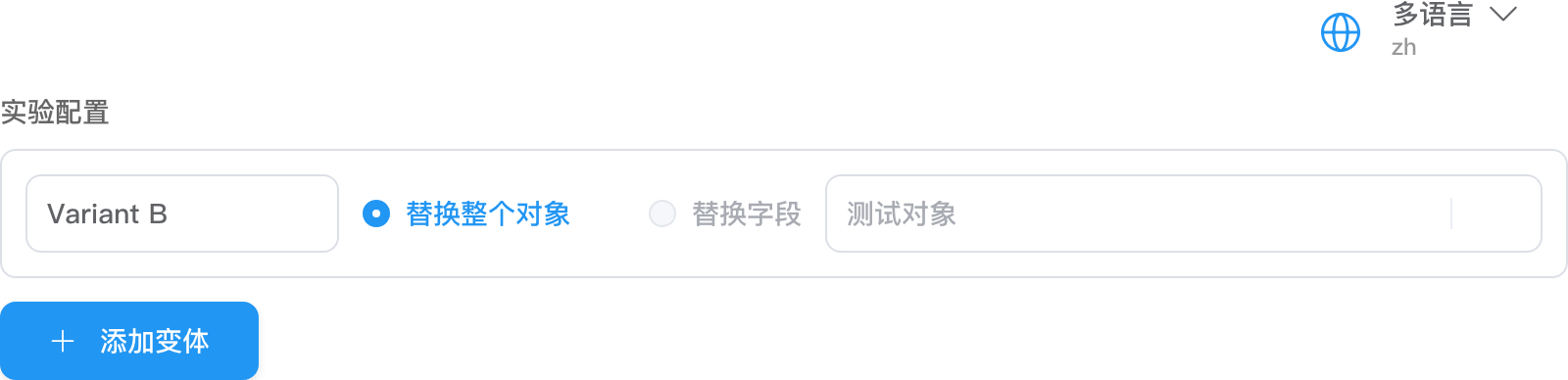
Configure each variant:
| Mode | Description |
|---|---|
| Replace Entire Object | Pick another object as variant content |
| Replace Fields | Available when object type supports fieldOverWrites; set field + multilingual replacement values |
You can Add Variant, delete variants, and rename variants. Control A is the object from Step 2 and is not selected again here.
Step 4: Traffic and User Assignment
| Block | Description |
|---|---|
| Traffic Allocation | Control A share = 100% − all variant weights; set 0–100% per variant; total must not exceed 100% |
| User Group Conditions | Optional: attribute + comparator + value (e.g. country, device); Add Condition |
Experiment Report Subpage
Path: /_Admin/system/ab-testing/report?SiteId=...&name={experimentName}
Top bar: back, experiment name, status tag; buttons such as Edit, Start Experiment, Pause Experiment, Restart, End Early depending on status.
Experiment Details Tab
Includes:
- Basic Info: name, description, target users, winning metric, duration and time range
- Experiment Configuration: control and variant configuration summary
- Traffic Allocation: share per group
Experiment Report Tab
Shown when the experiment is running or completed:
- Experiment Conclusion
- Group Data (performance per variant)
- Confidence Statistics
Draft or not-yet-started experiments show an empty state (no report data yet).
Goals and behavior analysis
The winning metric depends on Goals configured in behavior analysis. If the dropdown is empty, maintain Goals in Behavior Analysis (or related traffic settings) first, then add via Edit Goal in the create wizard.
Related
- Operations Center overview
- Page Interaction — anchor click statistics
- Behavior Analysis — Goals, user segments