
Appearance
Pages
Menu: top-left Pages
Deep link:/_Admin/site/pages?SiteId={siteGuid}
Manage all accessible page resources in the site: list maintenance, routing, code editing, and inline editing. For page syntax, see Template Engine -> Page. For scripts, see k.site.pages.
Prerequisite
It helps to understand Media library and Dashboard first. If you want to create a layout page, prepare at least one layout under Development -> Layouts first.
Open the page
- Enter a site admin.
- Click Pages in the left toolbar.
- The URL is
/_Admin/site/pages?SiteId=....
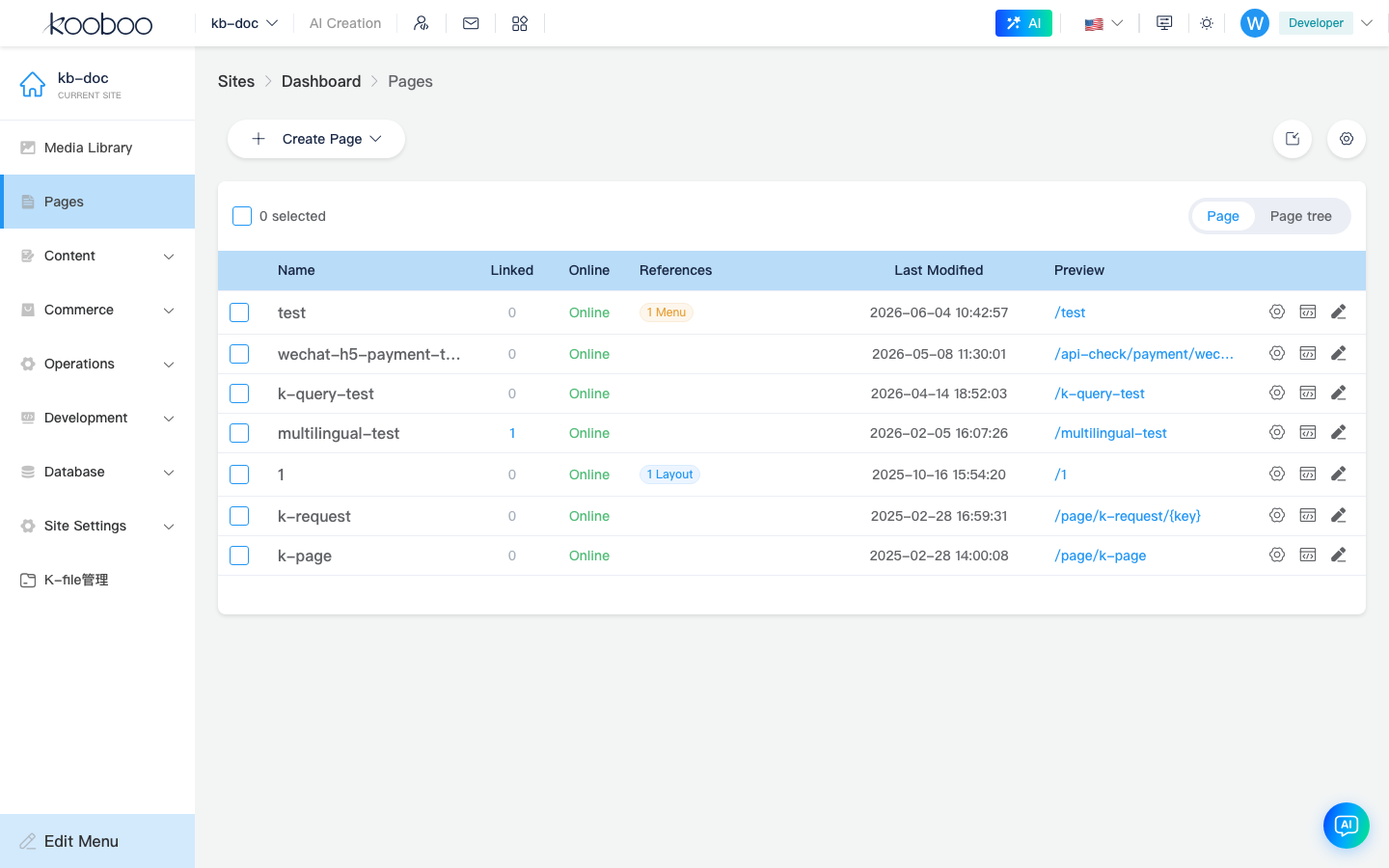
List page
| Column | Description |
|---|---|
| Name | Page resource name. The home icon marks the start page or home link. |
| Link | Whether the page is linked from other resources |
| Online | Whether the page is published |
| References | Which layouts, views, or content items use it |
| Last modified | Last save time |
| Preview | The front-end path; open it in a new window |
You can switch between Pages and Page Tree:
- Pages is a flat list, better for search, copy, and delete.
- Page Tree shows hierarchical structure and supports advanced filtering.
Toolbar
| Action | Description |
|---|---|
| Create Page | Choose a page type and start the creation flow |
| Create Designer Page | Create a visual design page based on a layout |
| Import | Import pages from a package or external source |
| Route Settings | Manage routing rules across multiple pages |
Create page
The Create Page menu usually includes:
| Type | Description |
|---|---|
| HTML Page | Standalone HTML, optional layout |
| Rich Text Page | Content managed through the rich text editor |
| {Layout name} Page | Uses a specific layout and fills its placeholders |
For an HTML Page, enter a page name and URL first. For a Layout Page, the system also passes layoutId.
Row actions
Each page usually has three entry points:
| Entry | Doc | Purpose |
|---|---|---|
| Settings | Page settings | URL, title, meta, page-level styles/scripts, cache |
| Edit Code / Design | Edit code | Change the HTML body or open the visual designer |
| Inline Edit | Inline edit | Edit visible text, images, links, and local styles in the rendered page |
Which one should you use?
- Settings for route, SEO, publish state, and asset references.
- Edit Code for page structure, placeholders, and view insertion.
- Inline Edit for small visible content changes on a live page.
Typical workflow
- Create an HTML page or a layout page.
- Use Edit code to add structure.
- Use Page settings to confirm URL and publish state.
- Preview the page.
- Use Inline edit for later content tweaks.
Related
| Doc | Description |
|---|---|
| Dashboard | Page totals in My Resources |
| Media library | Images used in pages |
| Content folders | Often paired with detail pages |